The Mac app
Browse, compare and export on your Mac
This is the Mac app for progress photos you take on your iPhone. The same App Store listing covers iPhone and Mac, and your scenes sync through your own iCloud.
- No account
- No ads
- No tracking
- Photos processed on your device
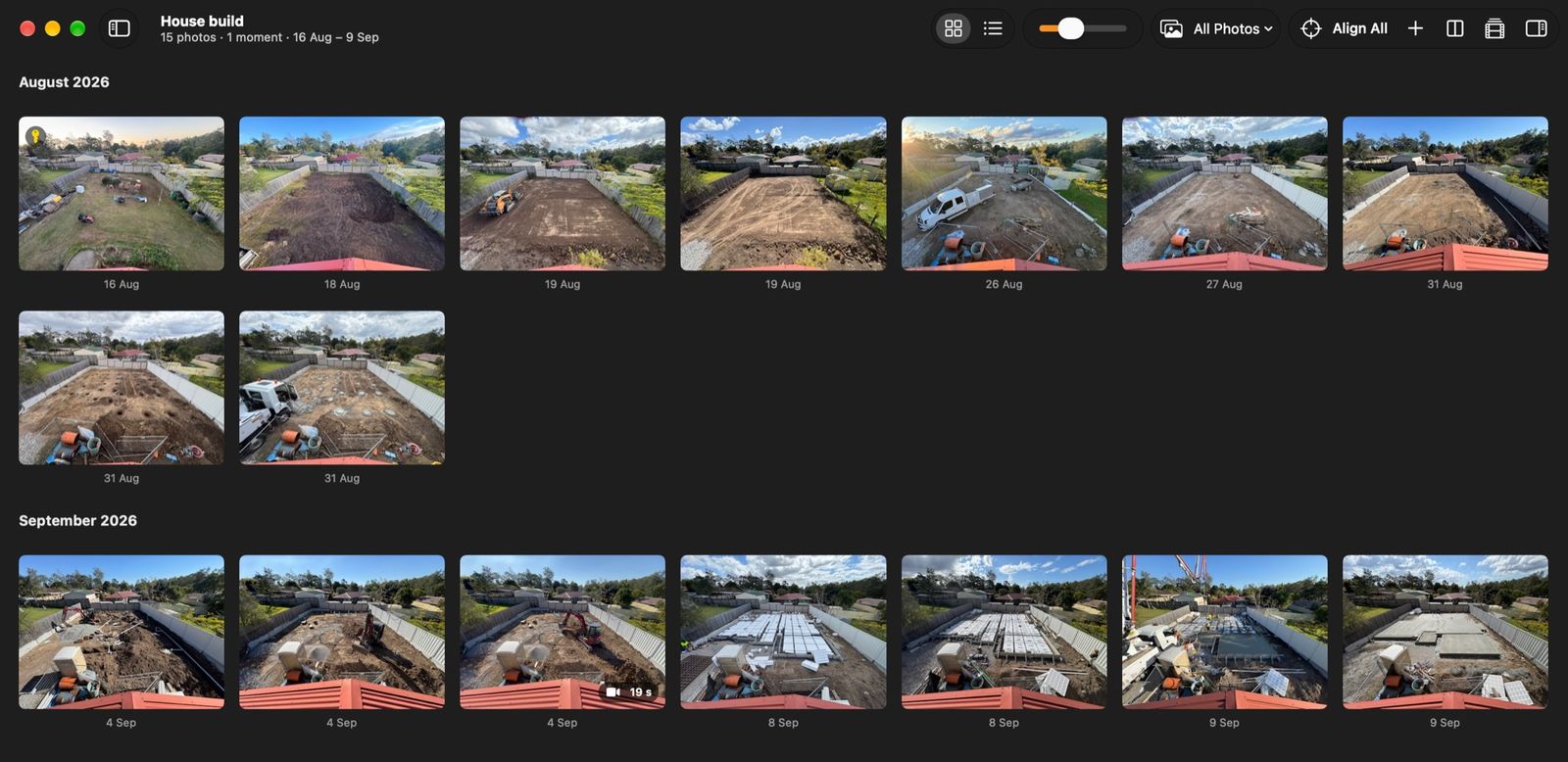
Your whole build on one screen
A phone is the right tool on site. It lives in your pocket, and Plumb Daily's guides help you line up each photo with the key photo. But a daily photo for 6 months is about 180 photos. That's a lot of scrolling on a small screen.
On your Mac, the whole scene fits in front of you. You can see the site cut, the slab and, later, the frame and the roof in one view. Then you can tidy, compare, line up and export without squinting.
Matthew Sweet built Plumb Daily to record his own new home build. The screenshots on this page come from that build. Tracking a new home build of your own? Your Mac is a good place to turn months of photos into one video. It works the same way for a renovation, a garden or a hobby project.
On your Mac you can:
- browse and tidy every scene
- bring in photos and videos from Finder
- compare any 2 days
- line up every photo with Align All
- make the video in the export studio, in HD or 4K.
The same App Store listing covers both
The same App Store listing covers iPhone and Mac. Install Plumb Daily on both and sign in to the same iCloud account. On your iPhone, open Plumb Daily, tap Settings on the list of scenes and turn on Sync with iCloud – it's off to start with. Close the app and open it again. Your phone's scenes then show up on your Mac. The Mac app has no switch of its own.
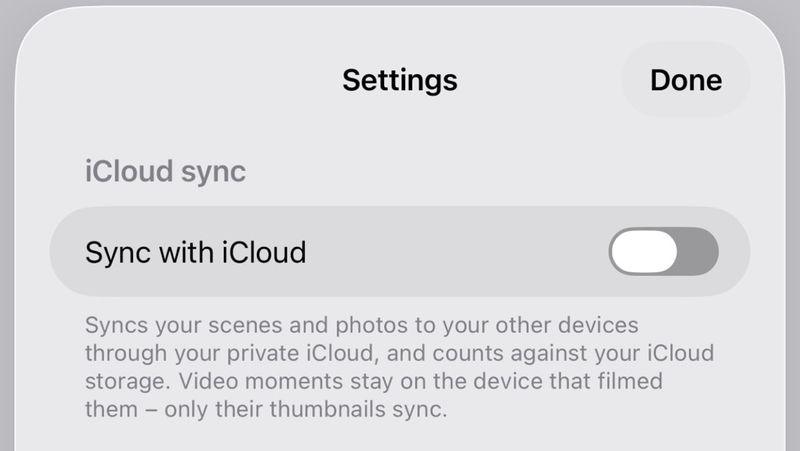
Sync runs both ways. Line up your photos on the Mac, and the videos you make on your phone use the same alignment.
Browse and tidy in bulk
Every scene from your iCloud is ready to browse. Show a scene's photos as a grid grouped by month, or as a list you can sort.
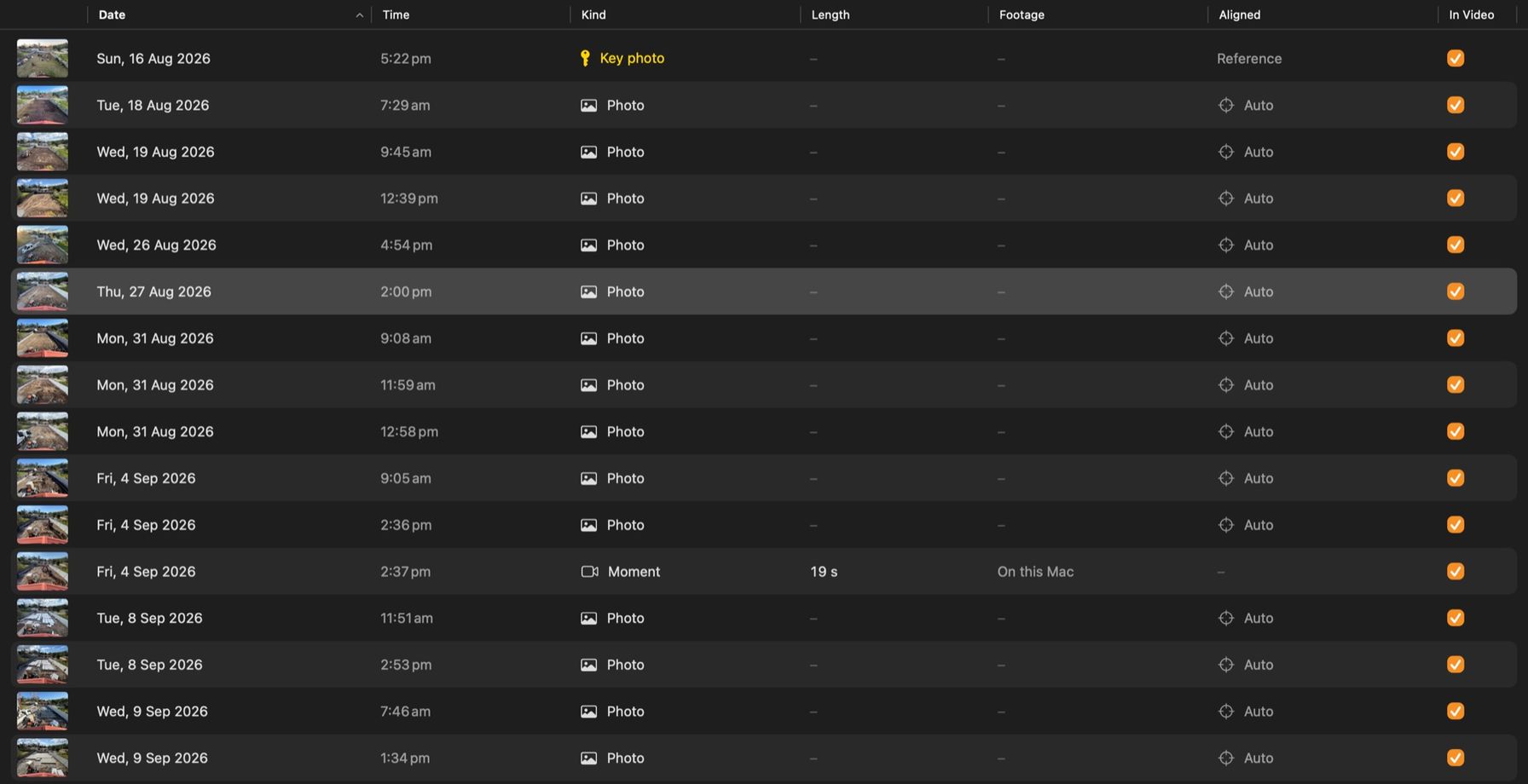
Tidying is quick when you can work on many photos at once:
- Command-click or Shift-click to select as many photos as you need.
- Include them in the video, leave them out or delete them in one go.
- Use keyboard shortcuts for the everyday jobs.
- Open any photo in the large viewer and zoom in to check the detail.
Leaving a photo out keeps it in the scene but drops it from the video. That suits the day a delivery ute parked right in front of the house.
Bring in photos from Finder
Not every photo comes from your phone. You might have shot the slab pour on a camera. Or someone sent you a folder of photos.
Drag photos and videos from Finder straight into a scene – even a whole folder from a camera card.
- Camera RAW and TIFF files are converted to HEIC, so your iPhone can open them too.
- Videos you bring in from Finder keep their sound in the finished video.
Compare any 2 days, 4 ways
Pick 2 photos from a scene and see what changed between them. There are 4 ways to look:
- Side by side – the 2 days next to each other.
- Onion skin – one photo laid over the other, see-through. You choose how see-through.
- Wipe – drag a divider across the frame to move from one day to the other.
- Difference – shows what has moved or changed between the 2 days.
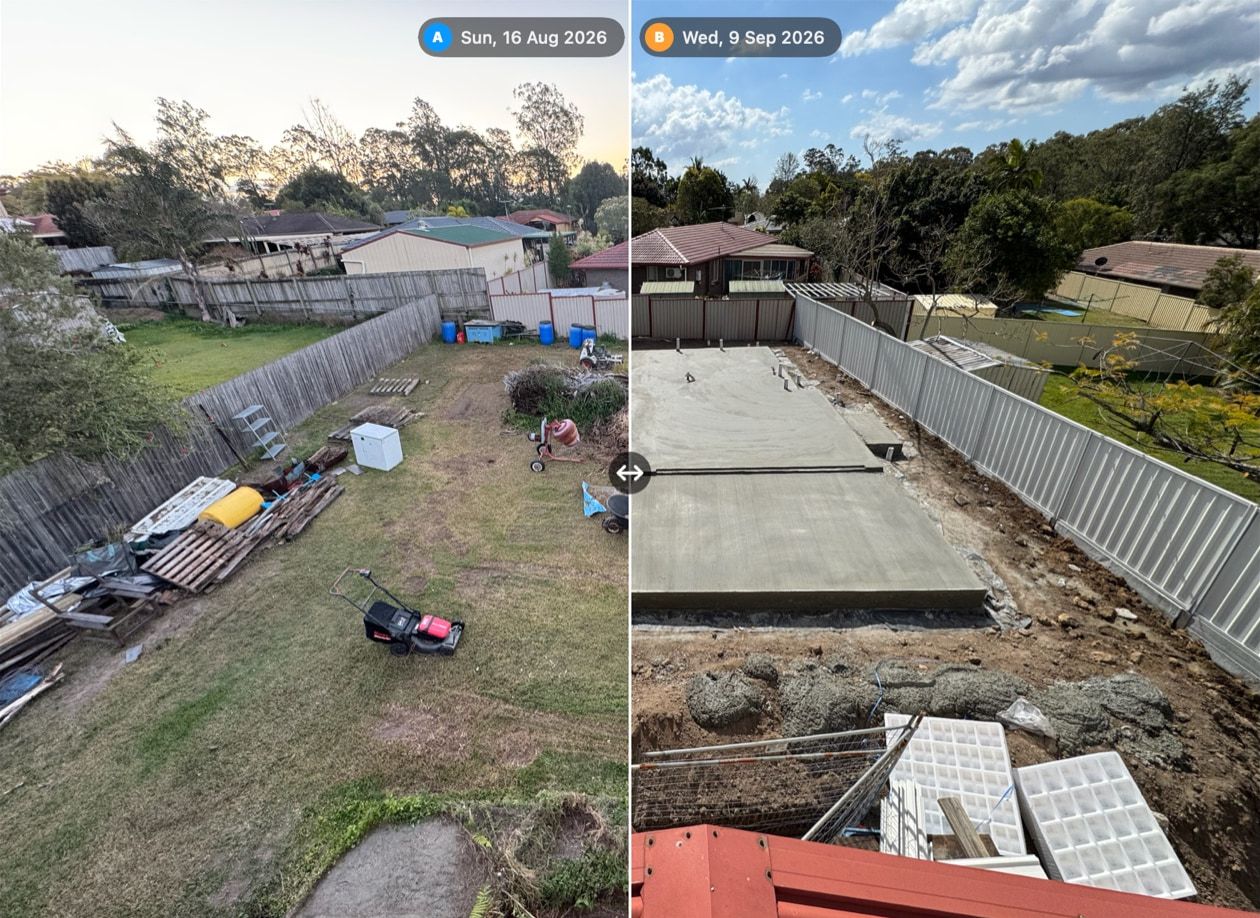
You can lay the stencil over any of them too. The stencil is an outline of the key photo's main edges. It makes anything that has shifted easy to spot.
It's a quick way to see how far the brickwork got in a fortnight. Comparing works best when every photo came from the same spot.
Line up the whole scene with Align All
Even with the guides, a handheld photo can land a little off plumb. It might sit a touch left, tilt a degree or come a step closer. Across hundreds of photos, those small shifts make a time-lapse jitter.
Align All fixes that in one go. It matches every photo with the key photo and lines it up. It runs on your Mac using Apple's Vision framework, so no photo goes anywhere to be aligned.
- Photos it can't match with confidence are flagged, so you can check them by hand.
- The nudge editor lets you adjust any photo yourself. Move it, turn it or scale it until it sits right.
- Your iPhone uses the same alignment when it exports, so a video made on your phone lines up too.
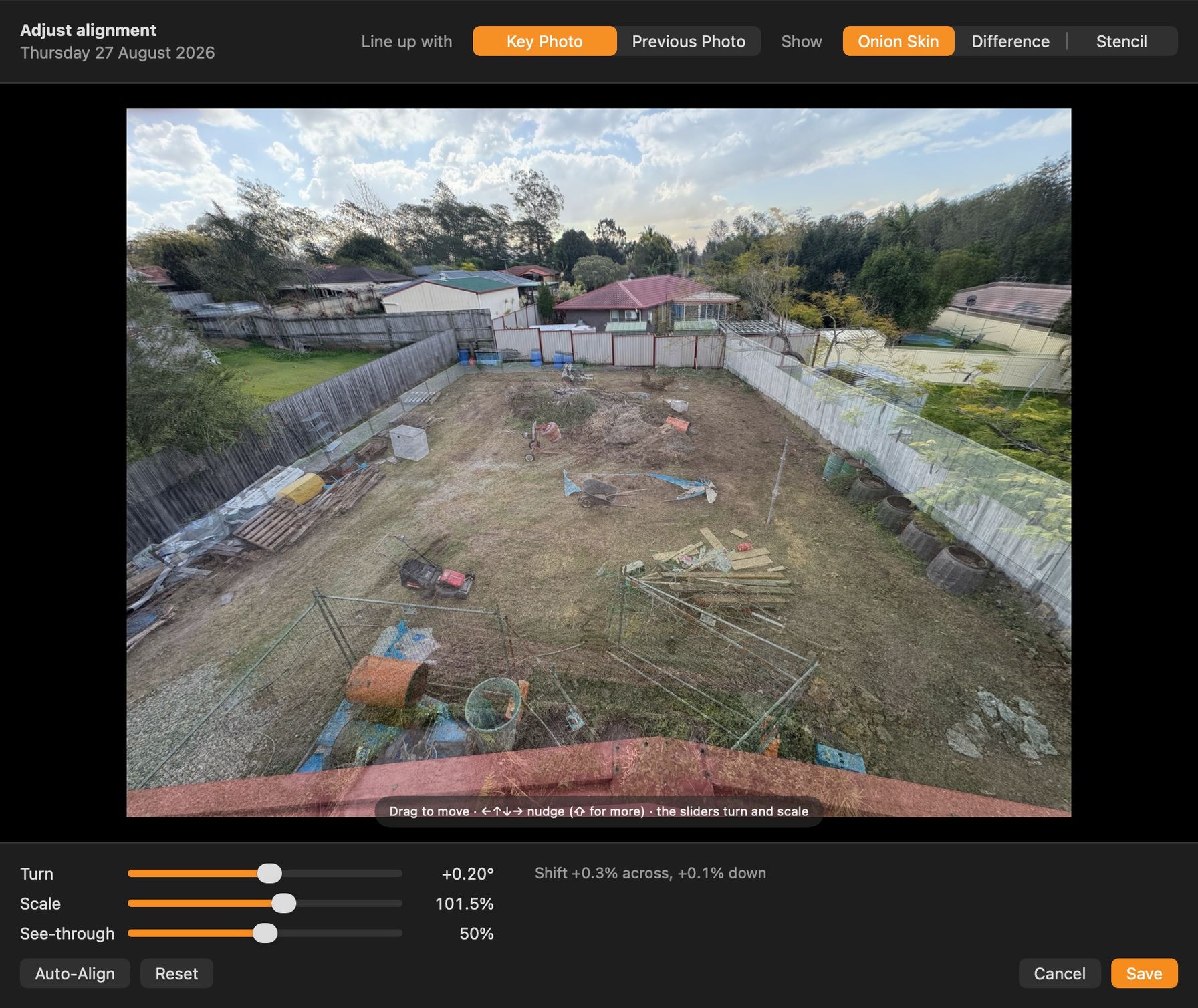
Want steadier photos from day one? The guide on how to align progress photos covers the capture side. Use the same spot, the same lens and the same zoom.
Make the video in the export studio
The export studio gives you a large preview you can scrub through. You can check the whole video before it renders.
Choose how it plays:
- Time-lapse – photos flick past at 2, 5, 10, 15 or 30 photos a second.
- Slideshow – each photo holds for 1, 1.5, 2, 3 or 5 seconds, with a transition between photos. Transitions include dissolve and push, plus depth transitions such as flip and cube.
Then set it up the way you want:
- Date range – export the whole build, or just one stage, such as frame to lock-up.
- Date stamp – each photo's date in the corner.
- Smooth exposure – evens out bright and dull days so the video doesn't flicker.
- Slow push-in – a gentle zoom across the whole video.
- HD or 4K – HD is 1440 × 1080 and 4K is 2880 × 2160, turned upright for a portrait scene. You get an MP4 in 4:3 or 3:4 to match your scene.
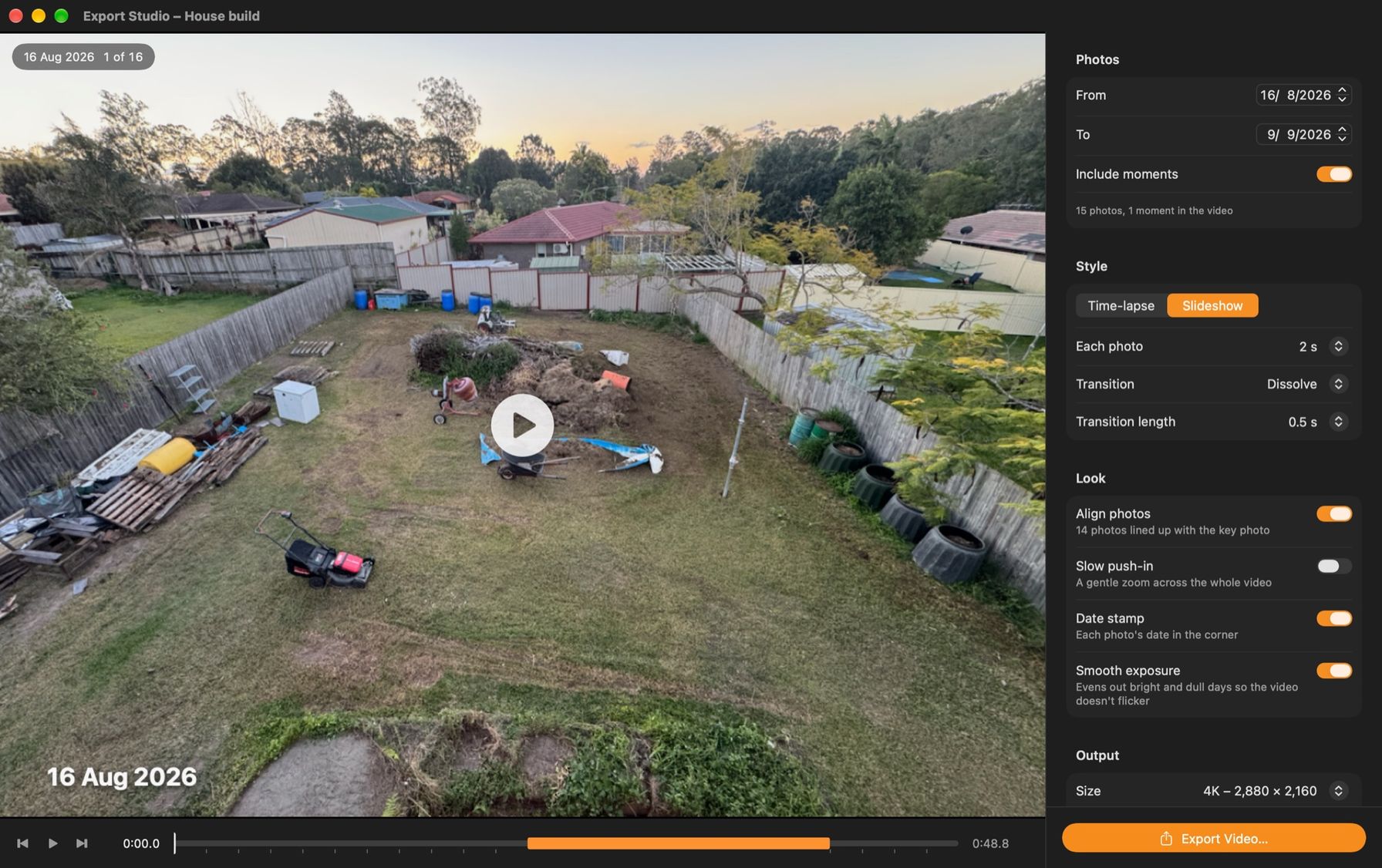
Save the finished video anywhere on your Mac. Moments play at real speed between the photos around them.
Still planning your project? Use the capture planner to plan your photo schedule and see roughly how long the finished time-lapse will run.
Moments from iCloud Photos
Moments are the short videos you record in the app – the crane lowering a roof truss, say. On the Mac they play in the large viewer. You can trim them there without changing the original.

Moment video files don't sync through iCloud – only a preview frame does. To get the video onto your Mac, fetch it from your iCloud Photos library, or link the file by hand.
Moments recorded in the app are video only. The app doesn't record sound, and it never asks for the microphone. Videos you add from Finder on your Mac, or from your library on your iPhone, keep their sound.
How sync works with your own iCloud
Plumb Daily syncs through iCloud – Apple's CloudKit private database, in your own iCloud account. Only you can see it. Not even the developer can.
- No account and no sign-up.
- No ads, no tracking and no analytics.
- No Plumb Daily servers. Your photos never go to Platform21.
- The stencil, the alignment and the video are all made on your devices.
Sync between your iPhone and your Mac needs iCloud. Plumb Daily works on a single device without it.
The Plumb Daily privacy policy has the full detail.
What your Mac and iPhone need
- A Mac with macOS 15 or later – Apple silicon or Intel.
- An iPhone with iOS 18 or later, to take the photos.
- The same iCloud account on both, with Sync with iCloud turned on in the iPhone app.
Plumb Daily is in beta testing on iPhone and Mac. It isn't on the App Store yet. Join the waitlist to hear when it is.
Got a setup question? The Plumb Daily support page answers the common ones.
Capture stays on your iPhone
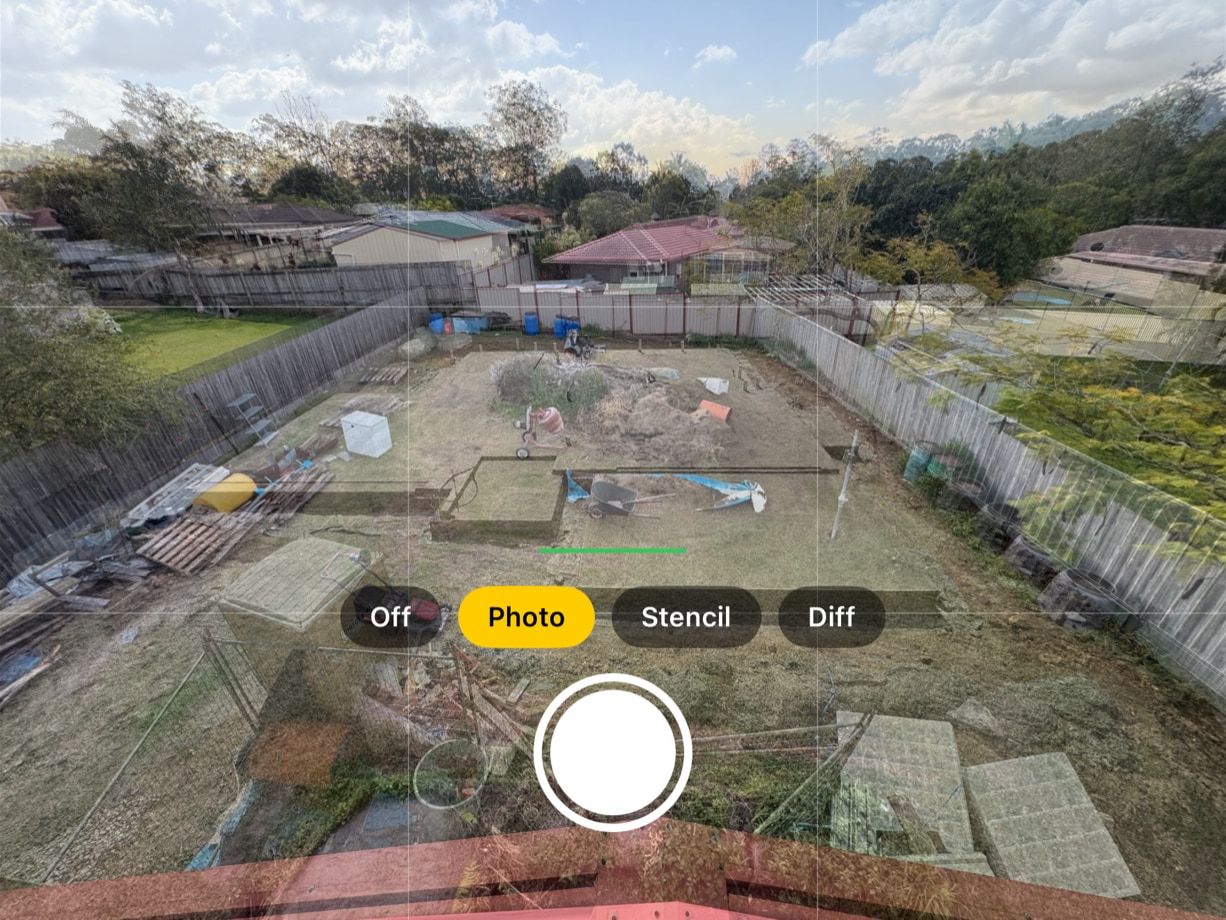
The Mac is for reviewing, tidying and exporting. The daily photos come from your iPhone. There, the key photo overlay, stencil and spirit level help you line up each shot. A daily reminder keeps you on track.
Frequently asked questions
Is the Mac app on the same App Store listing as the iPhone app?
Yes. The same App Store listing covers iPhone and Mac. Plumb Daily is in beta testing on both and isn't on the App Store yet.
Which Macs does Plumb Daily run on?
Macs running macOS 15 or later, with Apple silicon or an Intel processor.
Does the Mac app need iCloud?
To see your iPhone scenes on your Mac, yes. Sign in to the same iCloud account on both. Sync is off to start with, so turn on Sync with iCloud in Settings in the iPhone app, then close and reopen it. Nothing goes to Plumb Daily servers – there aren't any.
Why can't I see a moment's video on my Mac?
Moment video files don't sync through iCloud – only a preview frame does. On your Mac, fetch the video from your iCloud Photos library, or link the file by hand.
Does Align All upload my photos?
No. Align All runs on your Mac, using Apple's Vision framework. Your photos stay on your devices and in your own iCloud.
Hear when Plumb Daily reaches your Mac
You're on the list
You'll get one email when Plumb Daily is on the App Store. There's nothing else you need to do.