Support
Answers to common questions about Plumb Daily are below, grouped by topic. If yours isn't here, email me at support@plumbdaily.com.
I built Plumb Daily to record my own new home build, and I answer support email myself. The screenshots on this page come from that build.
Get help by email
Email support@plumbdaily.com with your question. Questions about this website or the waitlist are welcome too, including a request to take your email address off the waitlist.
These details help me find the problem faster:
- whether it's the iPhone app or the Mac app, and which model you're using
- your iOS or macOS version
- the app version – on the Mac, choose Settings from the Plumb Daily menu; on iPhone, TestFlight shows it
- what you were doing when it went wrong
- a screenshot, if you can take one
I'm in Australia, so if you're in another time zone, my reply may arrive overnight for you.
Testing the beta on TestFlight
Plumb Daily is in beta testing through TestFlight, Apple's app for testing apps before release. Version 0.5.0 is out to testers on iPhone and Mac. It isn't on the App Store yet, and there's no launch date.
If you're testing the beta:
- Install TestFlight from the App Store, then open your invitation to install Plumb Daily.
- Send feedback through TestFlight. On iPhone, take a screenshot and choose Share Beta Feedback. On either device, you can open TestFlight, choose Plumb Daily and use Send Beta Feedback.
- If the app crashes, TestFlight lets you send me the crash report with a comment.
- Each beta build works for up to 90 days. TestFlight tells you when a new build is ready.
- Allow Photos access, so every photo also saves to your Photos library. That keeps a copy outside the app while the beta settles.
Beta software can have bugs, and features may change before release. The terms of use for the beta explain what that means for you.
Cost and launch
What will Plumb Daily cost?
Pricing isn't decided yet, so I can't give you a figure. When it's set, you'll see it on the App Store listing. The same App Store listing covers iPhone and Mac.
When will Plumb Daily be on the App Store?
There's no launch date yet. The app is in beta testing on TestFlight, Apple's app for testing apps before release.
Join the waitlist and I'll email you when Plumb Daily is on the App Store.
Platforms and requirements
Which devices does Plumb Daily run on?
The iPhone app needs iOS 18 or later. The Mac app needs macOS 15 or later, on an Apple silicon or Intel Mac. The same App Store listing covers iPhone and Mac.
Do I need the Mac app?
No. The iPhone app captures, organises and exports your time-lapse on its own.
The Plumb Daily Mac app adds a big screen. You can browse every scene, compare any 2 days, line up a whole scene with Align All and export from the export studio.
Do I need iCloud?
Only to sync between devices. Plumb Daily works on one device without iCloud.
To see your scenes on another iPhone or your Mac, turn on iCloud sync and sign in to the same Apple Account on each device.
Privacy and your data
Do I need to create an account?
No. There's no account and no sign-up. You open the app and start a scene.
Where are my photos kept?
Your photos stay in the app on your device. Each one also saves to your Photos library once you allow it.
If you turn on iCloud sync, your scenes also go to Apple's CloudKit private database in your own iCloud account. Only you can see that data – I can't.
There are no Plumb Daily servers, and the app never sends your photos to me.
Does the app track me or show ads?
No. Plumb Daily has no ads, no tracking and no analytics. The stencil, the alignment and the video rendering all happen on your device.
The Plumb Daily privacy policy sets out the details for the app and this website.
What permissions does Plumb Daily ask for?
- Camera, to take photos and record moments.
- Photos, to save each photo to your library and, if you want them, keep an album for each scene.
- Notifications, but only if you turn on a daily reminder.
On the Mac, it asks for Photos access when you first fetch a moment's video from your library. It never asks for your microphone or your location.
Does syncing use my iCloud storage?
Yes. The scenes and photos you sync count against your iCloud storage, like the rest of your iCloud data.
Capture and alignment
What are a scene and a key photo?
A scene is one project – a house build, a garden or a renovation. You can have as many scenes as you like.
The first photo in a scene is its key photo. Every later photo lines up with it. You can choose a different key photo later.
How does Plumb Daily keep every photo lined up?
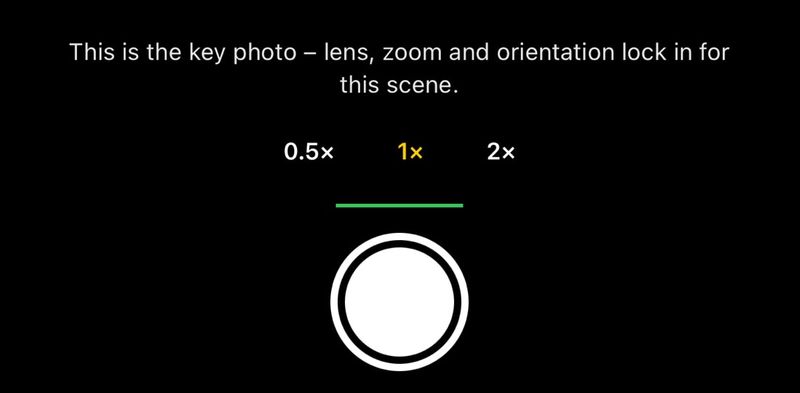
When you take the key photo, the lens, zoom and orientation lock for that scene. Every later photo gets the same field of view.
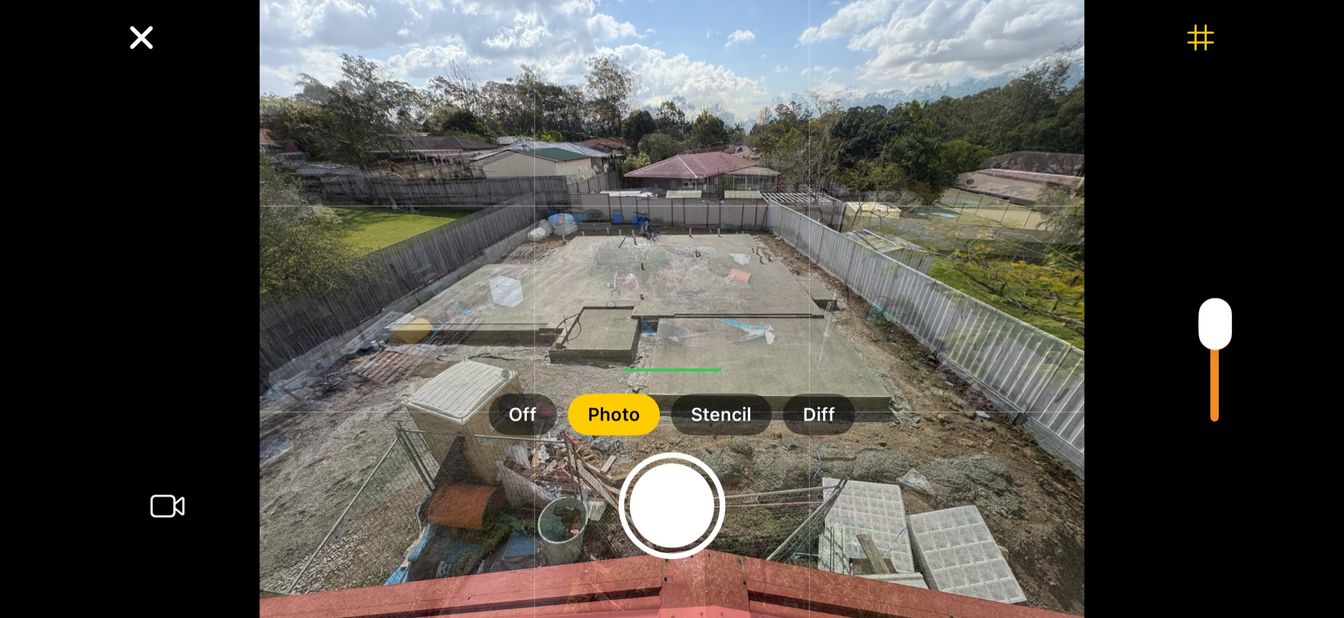
The viewfinder then gives you these guides:
- The key photo as a see-through overlay. It starts at 35 per cent opacity, and you can change it.
- A stencil – an outline of the key photo's main edges, drawn on your phone.
- A difference view that shows what has moved.
- A grid and a spirit level.
There's more on how the alignment guides work. There's also a plain guide on how to align progress photos.
Why can't I press the shutter?
Your phone is probably turned the wrong way for the scene. Each scene is portrait or landscape. The shutter stays off until you hold the phone the same way as the key photo.
Can I add photos I took before I started?
Yes. Use Add from library to bring in photos or videos you already have. They land on the date they were taken, so they sit in the right place in your timeline.
Can Plumb Daily line up photos after I've taken them?
Yes, on the Mac. Align All lines up every photo in a scene with the key photo, on your Mac, using Apple's Vision framework.
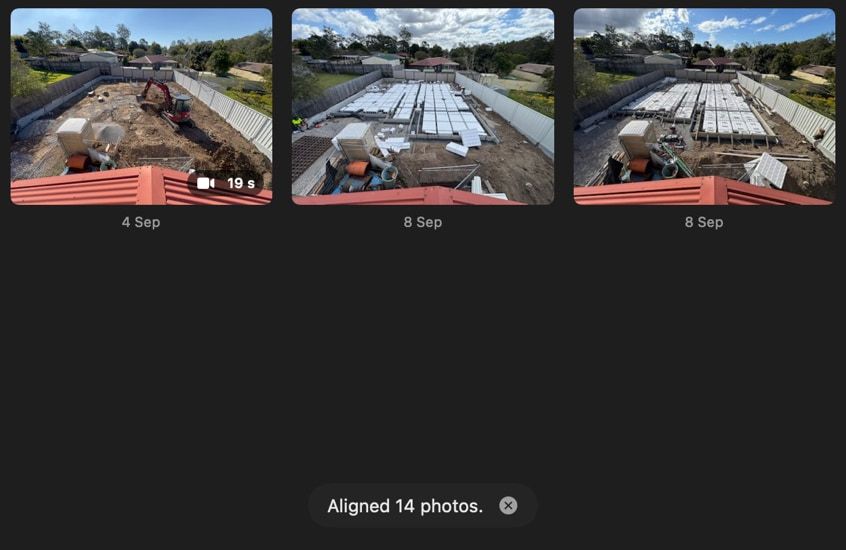
A nudge editor lets you move, turn or scale any photo by hand. Photos it can't match confidently are flagged for you to check. Your iPhone's exports use the same alignment.
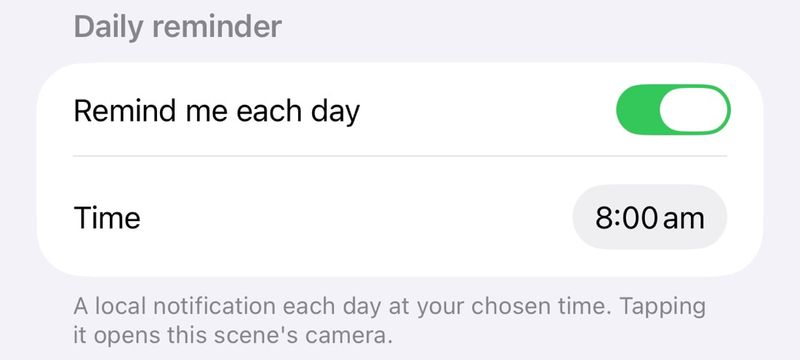
Can Plumb Daily remind me to take a photo?
Yes. Each scene can have a daily reminder at a time you choose. Your phone schedules the reminder itself – nothing comes from a server.
Not sure how often to shoot? The capture planner suggests a photo schedule for the length of your project.
Moments
What is a moment?
A moment is a short video, such as the crane lowering a roof truss. You record it with the same overlay and stencil guides, or add a video you already took.
In the finished video, a moment plays at real speed between the photos around it. You can trim its start and end without changing the original.
Do moments record sound?
No. Moments you record in Plumb Daily are video only – the app doesn't record sound and never asks for your microphone.
Videos you add from your library, or from Finder on the Mac, keep their sound in the finished video.
Exporting
What kinds of video can I make?
There are 2 styles:
- A time-lapse flicks through your photos at 2, 5, 10, 15 or 30 photos a second.
- A slideshow holds each photo for 1, 1.5, 2, 3 or 5 seconds, with a transition between photos.
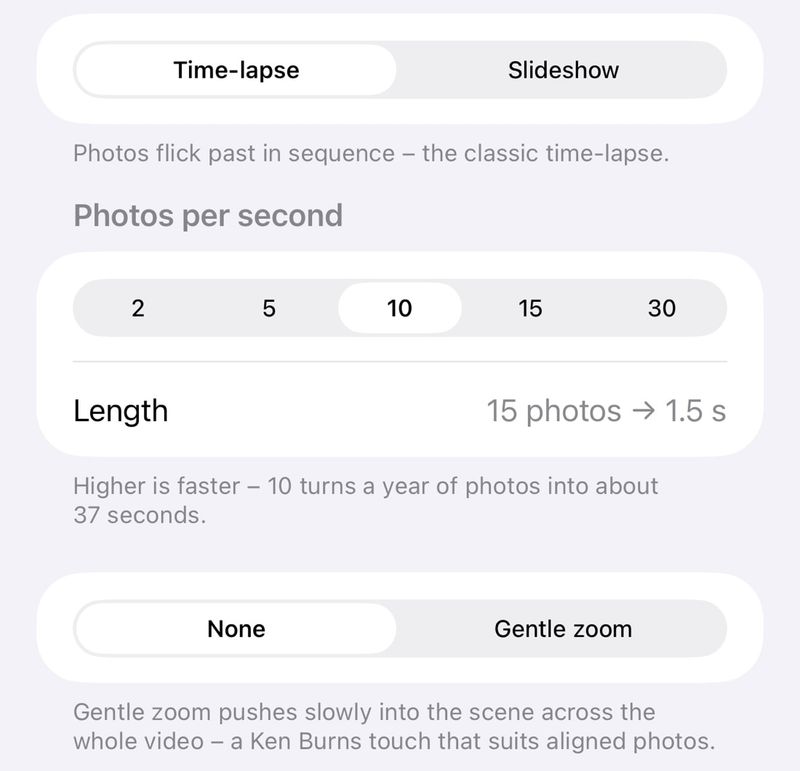
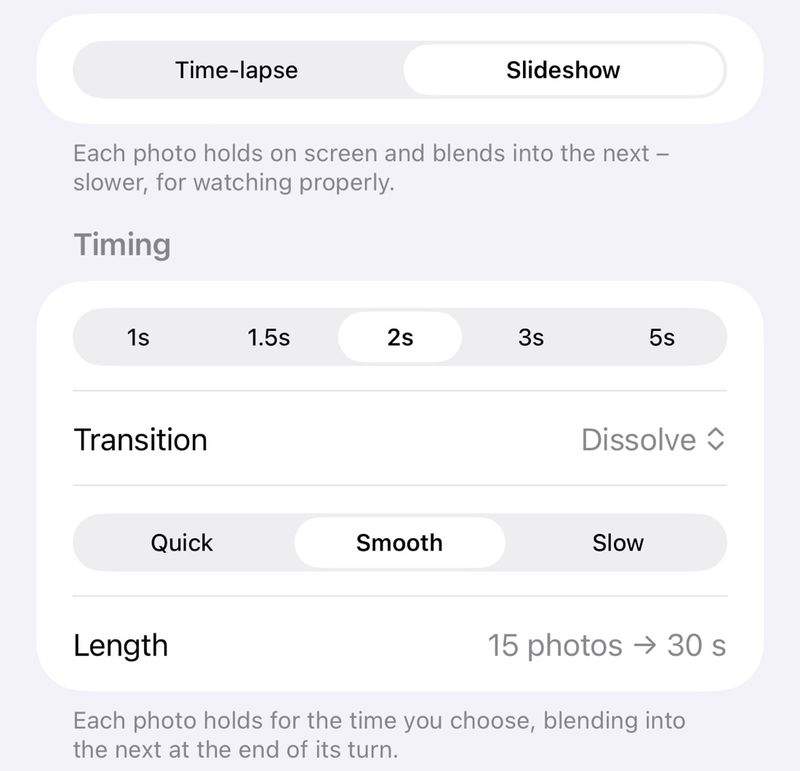
You can add a slow zoom across the whole video – choose Gentle zoom on iPhone, or turn on Slow push-in on the Mac. A live preview shows the result, transitions included, before it renders.
What format and size is the finished video?
An MP4 (HEVC) in 4:3 or 3:4 to match your scene, up to 2880 × 2160. The Mac also offers HD at 1440 × 1080.
On iPhone, finished videos save to your Photos library, and the app keeps a shelf of your saved time-lapses. On the Mac, the export studio saves the video wherever you choose.
Why did my video stop rendering on my iPhone?
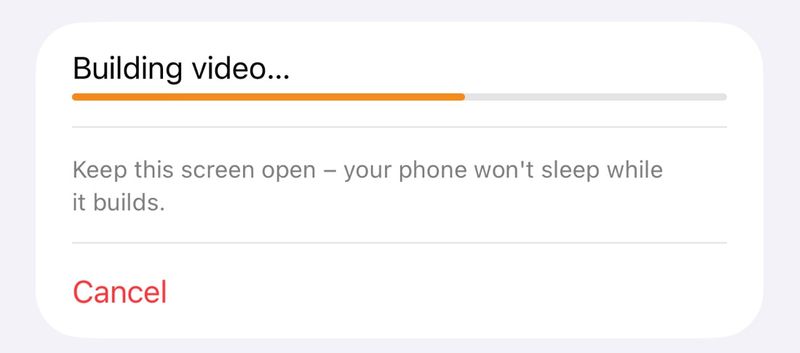
Keep Plumb Daily open while a video renders. iOS stops video rendering when an app leaves the screen, so switching apps or locking your phone stops the export.
The app keeps the screen awake while it works, so you can set the phone down and let it finish.
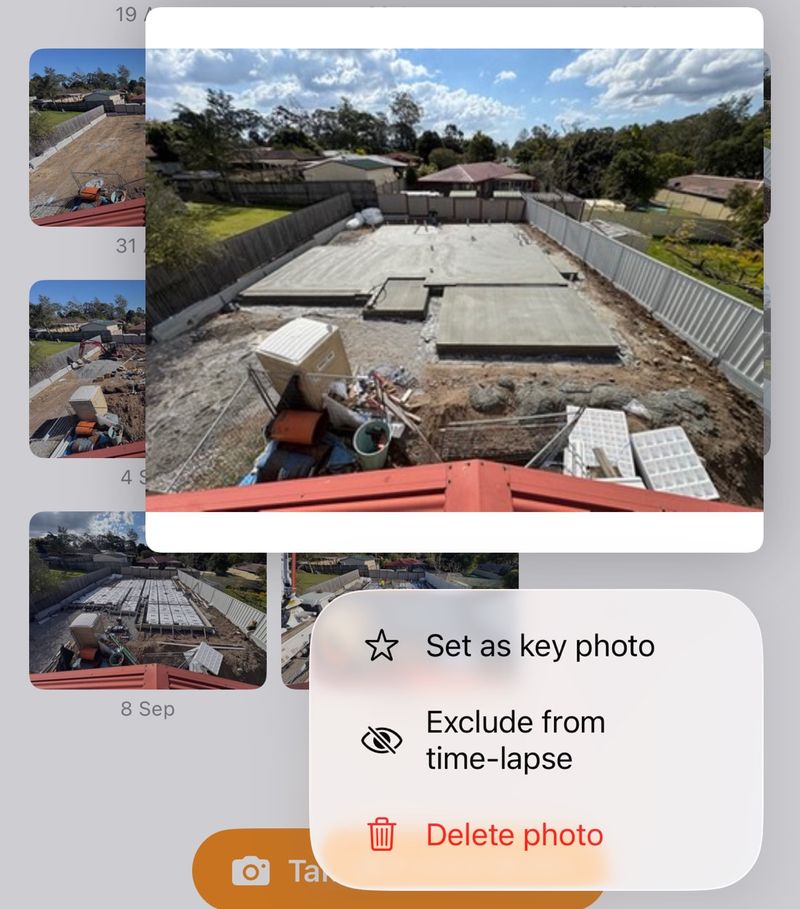
Can I leave a photo out of the video without deleting it?
Yes. Leave it out of the video and it stays in your timeline. On the Mac, you can select many photos and include or leave them out in one go.
iCloud sync
How do I sync between my iPhone and my Mac?
On your iPhone, open Plumb Daily, tap Settings on the list of scenes and turn on Sync with iCloud. The change takes effect the next time the app opens, so close it and open it again.
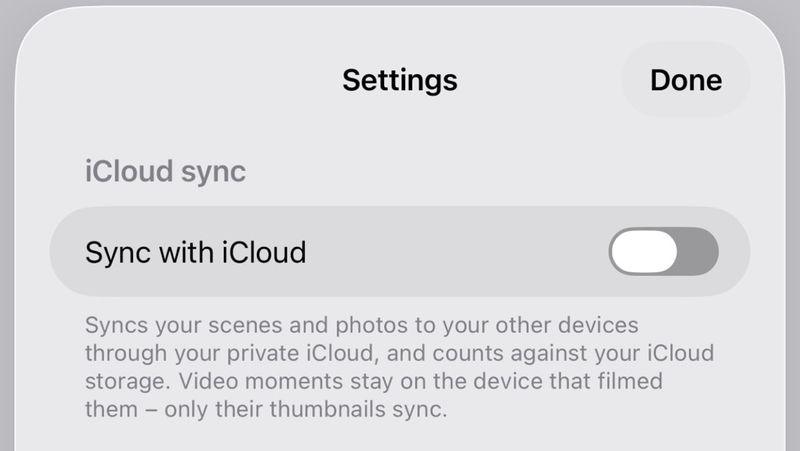
Make sure your iPhone and Mac are signed in to the same Apple Account in iCloud. Your scenes then appear in the Mac app once iCloud has synced them.
What syncs between my devices?
Your scenes, photos, key photos and edits. Moment videos are the exception. Only a preview frame of each moment syncs, and the video stays on the iPhone that recorded it.
Troubleshooting
Plumb Daily can't use my camera. How do I fix it?
Plumb Daily needs camera access to take photos and record moments. On your iPhone, open the Settings app, tap Apps, then Plumb Daily, and turn on Camera. Then go back to Plumb Daily.
My photos aren't saving to my Photos library
Plumb Daily needs permission to save there. Open the Settings app, tap Apps, then Plumb Daily, then Photos. Choose Add Photos Only or Full Access. An album for each scene needs Full Access.
Your photos are safe in the app in the meantime. Once access is on, open the scene and choose Save missing to Photos from its menu.
My daily reminder doesn't arrive
Check that notifications are allowed. Open the Settings app, tap Apps, then Plumb Daily, then Notifications, and turn on Allow Notifications.
Then check the reminder time in the scene's settings. A Focus, such as Sleep or Do Not Disturb, can also hold reminders back.
A scene isn't showing up on my other device
Work through these checks:
- On your iPhone, open Settings in Plumb Daily and make sure Sync with iCloud is on. If you've just turned it on, close the app and open it again.
- Check both devices are signed in to the same Apple Account in iCloud.
- Check your iCloud storage isn't full.
- Give it time. The first sync can take a few minutes, and photos arrive in the background.
Plumb Daily shows when it last synced. On the iPhone, look in Settings in the app. On the Mac, choose Settings from the Plumb Daily menu.
A moment's video is missing on my Mac
Moment videos don't sync through iCloud – only a preview frame does. The video stays on the iPhone that recorded it. To use it on your Mac:
- Open the moment and choose Get from Photos. This works when Plumb Daily on your iPhone has Full Access to Photos, and iCloud Photos is on for both your iPhone and your Mac.
- If you've just given Full Access on your iPhone, open Plumb Daily there once before you try again.
- Plumb Daily needs Photos access on the Mac too. Open System Settings, choose Privacy & Security, then Photos, and turn on Plumb Daily.
- Or choose Link Video and pick the file, or drag the video onto the moment.
In the export studio, any moment without its video is left out of the finished video. The studio offers to get missing moments from Photos for you.
Still stuck?
Email support@plumbdaily.com and tell me what's happening, with a screenshot if you can. For how the app and this website handle your information, see the Plumb Daily privacy policy.
Not testing the beta? Join the waitlist. I'll use your email address only to tell you when Plumb Daily launches.