
Plan your capture schedule
How many photos will your project take, and how long will the finished video run? This capture planner works it out before you take the first photo.
Enter how long your project will run and how often you'll shoot. The planner shows your photo count and your video length. If the video would run under 30 seconds or over 90, it suggests a speed that fits.
Your plan
Enter your project length to see your plan.
Plumb Daily's guides help you line up every photo with the first.
Join the waitlistWhat the planner tells you
- Photos you'll take. Your project length in days, times the photos you take each day.
- Video length. How long the finished video runs, in minutes and seconds. So 1:08 means 1 minute and 8 seconds.
- A suggested speed. If the video runs under 30 seconds or over 90, the planner suggests a speed that brings it into range. Select Use this speed to try it.
How the planner does the maths
There are 5 steps, and you can check each one with a calculator.
- Days. Multiply your project length by the days in each unit. A week is 7 days. A month is 30.4 days, the average month across a year. The planner rounds this to whole days.
- Photos. Multiply the days by your photos a day.
- Time on screen for the photos.
- For a time-lapse, divide the photos by the photos a second.
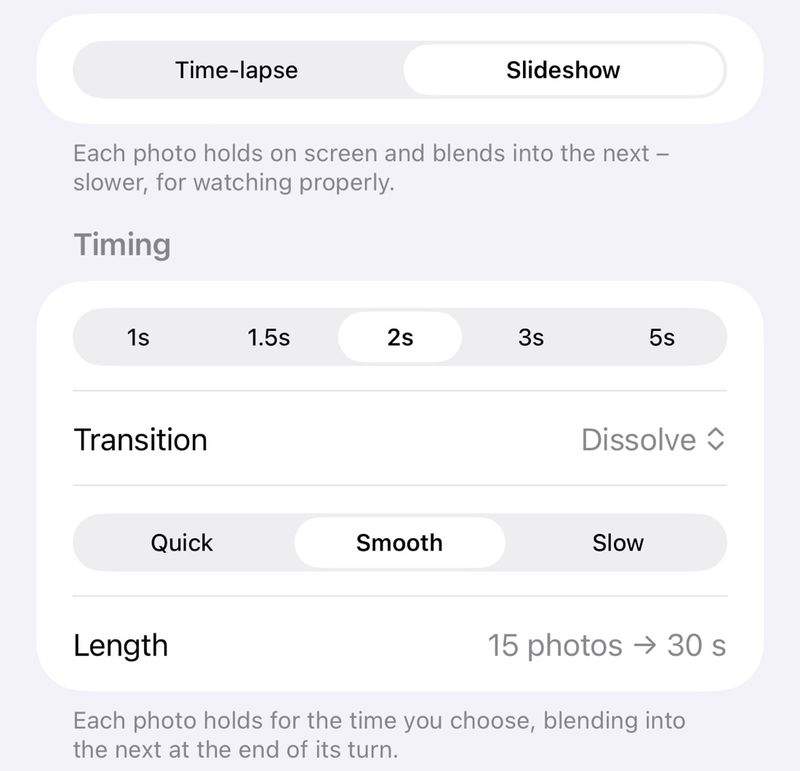
- For a slideshow, multiply the photos by the seconds a photo. The transition into the next photo happens within that time, so it doesn't make the video longer.
- Moments. Multiply the number of moments by their average length. A moment plays at real speed, so every second of footage adds a second of video. Use the length after trimming.
- Video length. Add the photos and the moments together. The planner rounds to the nearest second and shows it as minutes and seconds.
Transitions and the slow push-in don't change the length. Only the number of photos, the speed and your moments do.
How the suggestion works
The planner puts every speed on one scale, from the slowest to the fastest:
- a slideshow at 5, 3, 2, 1.5 or 1 seconds a photo
- a time-lapse at 2, 5, 10, 15 or 30 photos a second.
A time-lapse at 2 photos a second gives each photo half a second. That's why it follows straight on from a 1-second slideshow.
If your video runs over 90 seconds, the planner steps one speed faster at a time until it fits. If it runs under 30 seconds, it steps slower. It will cross from a slideshow to a time-lapse, or back, if that's what it takes.
Moments stay the same length at any speed. If your moments alone add up to more than 90 seconds, the planner suggests trimming them instead.
If no speed gets the video into range, the planner says so and tells you what to change. For a long video, that's fewer photos a day. For a short one, it's more photos a day or some moments.
Why 30 to 90 seconds
It's a guide, not a rule. Under 30 seconds, months of work flash past too quickly to follow. Past 90 seconds, it's a long watch for anyone who didn't live through the project. If the video is just for you, make it as long as you like.
Worked examples
A new home build over 40 weeks
Say your build runs about 40 weeks. You take one photo a day and plan a time-lapse at 5 photos a second. You also expect 4 moments of about 10 seconds each: the slab pour, the frame going up, the roof trusses craned in and the scaffold coming down.
- Days: 40 × 7 = 280
- Photos: 280 × 1 = 280
- Photos on screen: 280 ÷ 5 = 56 seconds
- Moments: 4 × 10 = 40 seconds
- Video length: 56 + 40 = 96 seconds, or 1:36
Without the moments, 0:56 would fit well. With them, the video runs over 90 seconds, so the planner steps one speed faster. At 10 photos a second, the photos take 280 ÷ 10 = 28 seconds. Add the 40 seconds of moments, and the video runs 68 seconds.
Suggested: 10 photos a second, for a 1:08 video.
There's more on recording a whole build in a house build time-lapse app, built in Australia.
A kitchen renovation over 6 weeks
A renovation moves fast, so you take 2 photos a day: one in the morning and one after the trades leave. You'd like a slideshow at 1.5 seconds a photo.
- Days: 6 × 7 = 42
- Photos: 42 × 2 = 84
- Video length: 84 × 1.5 = 126 seconds, or 2:06
That's over 90 seconds. One speed faster is 1 second a photo, and 84 × 1 = 84 seconds.
Suggested: 1 second a photo, for a 1:24 video.
A mural over 4 weeks
You're painting a mural over 4 weeks, with one photo at the end of each day. You start with a time-lapse at 10 photos a second.
- Days: 4 × 7 = 28
- Photos: 28 × 1 = 28
- Video length: 28 ÷ 10 = 2.8 seconds, or 0:03
That's over in a blink. The planner steps slower, one speed at a time:
- a time-lapse at 5 photos a second runs 0:06
- a time-lapse at 2 photos a second runs 0:14
- a slideshow at 1 second a photo runs 0:28
- a slideshow at 1.5 seconds a photo runs 0:42.
Suggested: switch to a slideshow at 1.5 seconds a photo, for a 0:42 video.
A short project with few photos usually suits a slideshow.
A garden over 12 weeks
You photograph a new garden bed once a day for 12 weeks. You plan a time-lapse at 2 photos a second.
- Days: 12 × 7 = 84
- Photos: 84 × 1 = 84
- Video length: 84 ÷ 2 = 42 seconds, or 0:42
That's already between 30 and 90 seconds, so the planner keeps your choice.
Quick reference for one photo a day
This table shows video lengths at one photo a day. Lengths in bold fall between 30 and 90 seconds.
| Project length | Photos | Slideshow, 2 s a photo | Slideshow, 1 s a photo | Time-lapse, 2 a second | Time-lapse, 5 a second | Time-lapse, 10 a second |
|---|---|---|---|---|---|---|
| 1 month | 30 | 1:00 | 0:30 | 0:15 | 0:06 | 0:03 |
| 3 months | 91 | 3:02 | 1:31 | 0:46 | 0:18 | 0:09 |
| 6 months | 182 | 6:04 | 3:02 | 1:31 | 0:36 | 0:18 |
| 12 months | 365 | 12:10 | 6:05 | 3:03 | 1:13 | 0:37 |
| 24 months | 730 | 24:20 | 12:10 | 6:05 | 2:26 | 1:13 |
Taking 2 photos a day doubles both the photo count and the time the photos spend on screen.
Tips for a count that holds up
- Shooting only on some days? Enter the days you'll actually shoot. For example, 26 weeks of weekdays is 130 shooting days, so enter 130 days.
- Real life lowers the count. Missed days and photos you leave out both bring it down. Plumb Daily lets you leave a photo out of the video without deleting it.
- You don't have to pick the speed now. In Plumb Daily, you choose the style and speed when you export. A live preview shows the result before it renders, so you can try more than one.
- Set a daily reminder. Plumb Daily can remind you each day at a time you choose, for each scene. Fewer days slip past that way.
Next, line up every photo you take
A good photo count only helps if every photo matches the first. See how Plumb Daily keeps every progress photo lined up, from the key photo to the finished video.
Where you stand matters too. The guide on how to align progress photos so your time-lapse doesn't jump covers picking a spot you can come back to.
Plumb Daily is in beta testing on iPhone and Mac, and it isn't on the App Store yet. Join the waitlist and you'll get one email when it is.
Hear when Plumb Daily is on the App Store
You're on the list
You'll get one email when Plumb Daily is on the App Store. There's nothing else you need to do.