Release notes
0.4.0: the first native Mac app
Browse, compare and export your iPhone scenes on a bigger screen.
- Mac
- TestFlight builds
- Mac: build 1, 23 September

I uploaded 0.4.0, the first native Mac version of Plumb Daily, to TestFlight on 23 September 2026. It brought your iPhone scenes to a bigger screen, where you can browse, compare and export them. The iPhone app skipped this version – its next update was 0.5.0, the same day.
New
Your scenes on the Mac
- Plumb Daily runs natively on macOS 15 or later. You install it from TestFlight.
- Turn on Sync with iCloud in the iPhone app. Your scenes, photos, key photos and edits then sync both ways through your own iCloud.
- The sidebar lists each scene with a thumbnail, photo count and date span. Search your scenes there, start a new one (Command-N), or rename or delete one.
- Deleting a scene removes it from all your devices.
- The sidebar footer and Settings show when the Mac last synced, or that iCloud is unavailable. Since 0.5.1, they also name the problem when sync is held up.
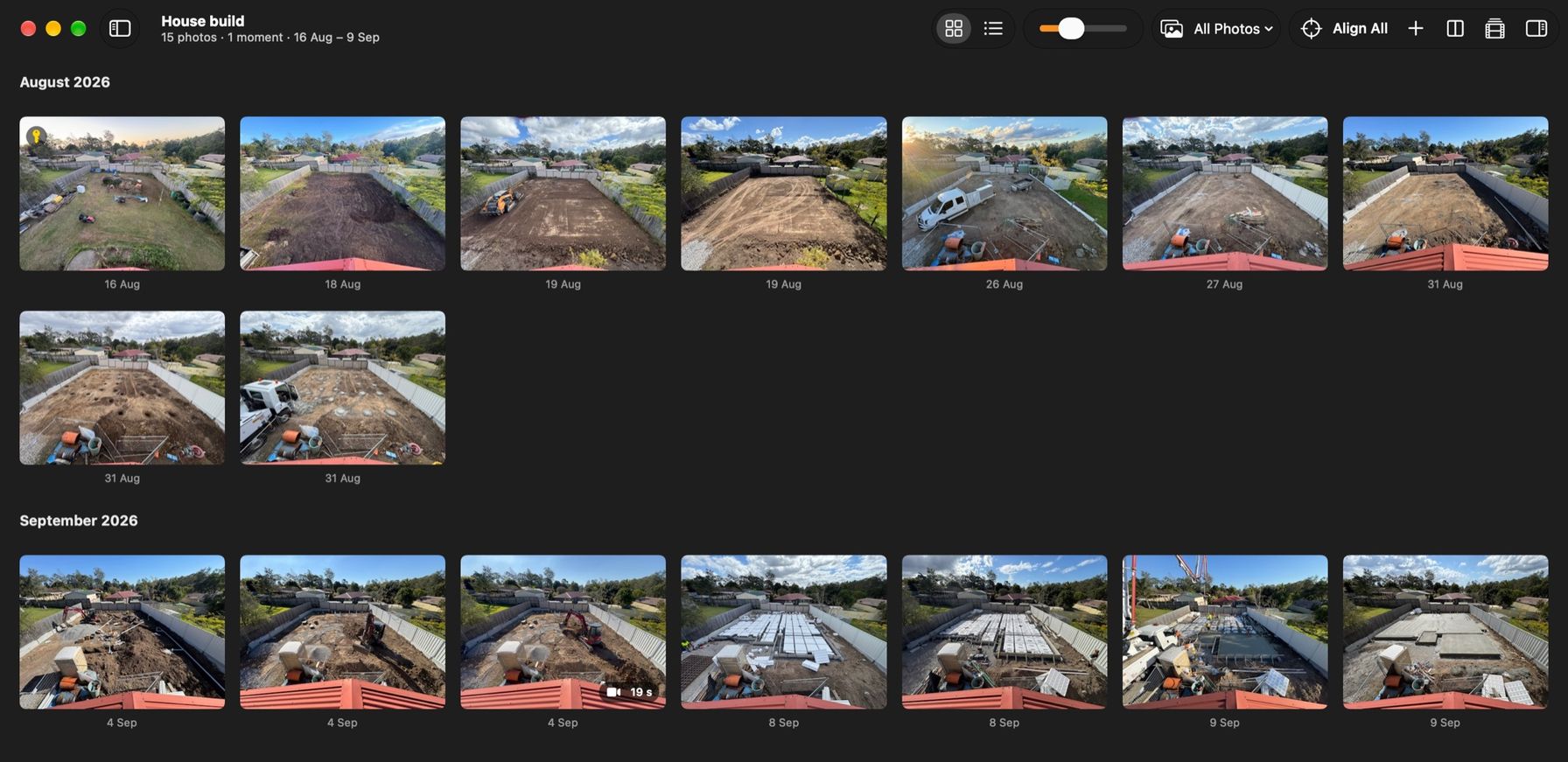
- A scene's photos show as a grid grouped by month, or as a list you can sort by date. You can resize the grid's thumbnails.
- A filter narrows the view to photos in the video, photos left out, moments, or moments still missing their video.
- Select photos as you would in Finder. The context menu, Photo menu and shortcuts include, leave out, compare or delete the selection.
- You can set a new key photo the same way. You can't delete the key photo while other photos line up against it.
Looking closely
- Double-click a photo, or press Space or Return, to see it large. A filmstrip and the arrow keys step you through the scene.
- Pinch or double-click to zoom.
- Moments play only their trimmed part, with the same trim handles as the iPhone.
- The inspector shows a photo's date, size and whether it's in the video. For several photos, it shows totals and buttons that act on them all at once.
- With nothing selected, the inspector sums up the scene: days with a photo, the longest gap, orientation and lens.
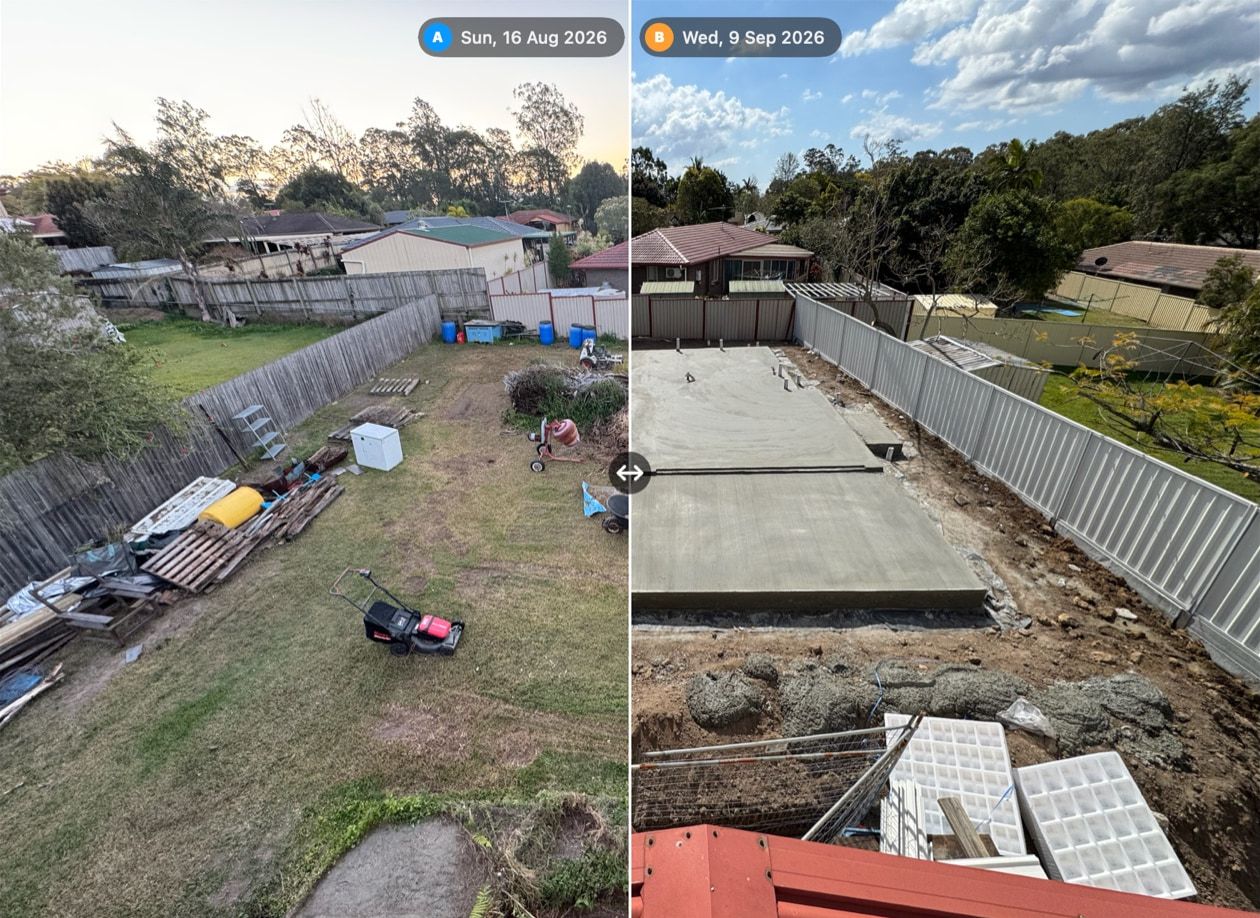
- The Compare window shows 2 photos side by side, or as an onion skin (one photo laid see-through over the other). It can also show them as a wipe you drag, or as a difference that highlights what changed. Since 0.5.0, Difference evens out both photos' brightness first.
- In Compare, zoom and pan move both photos together, and the arrow keys step through the scene. A toggle overlays the key photo's stencil – an outline of its main edges.
Bringing photos in
- Drag photos, videos or whole folders from Finder into an open scene. Or choose File, then Add Photos (Shift-Command-I).
- Each photo or video lands in the timeline on the date it was taken. Imports never replace an existing key photo. Since 0.5.1, adding photos skips any the scene already has, and you can import a Photos album too.
- RAW and TIFF photos convert to HEIC, so your iPhone can open them.
- Moment videos stay on the iPhone that recorded them. The Mac badges those moments and lists them under Needs Attention.
- Link a moment's video by dragging the file onto the open moment, or click Link Video and choose it. Since 0.5.0, Get from Photos can also fetch the video from your iCloud Photos library.
- Until you link them, the export studio tells you how many moments it leaves out.
The export studio
- The export studio (Shift-Command-E) previews a scene's video as it will export. You can play, step or scrub through it.
- Choose the dates, whether to include moments, time-lapse or slideshow pacing, transitions and a slow push-in. Then save the MP4 wherever you like.
- A date stamp can put each photo's date in the bottom-left corner.
- Smooth exposure evens out bright and dull days, so the video doesn't flicker.
- Render at HD (1440 × 1080) or 4K (2880 × 2160). A portrait scene swaps the width and height.
- The studio shows the video's length and rough file size, and keeps the Mac awake while it renders.
Testing the beta
Plumb Daily is in beta testing on TestFlight, Apple's app for testing apps before release. If you're a tester, TestFlight shows the newest build it has for your device. It includes these changes, unless a later release says otherwise. How to test the Plumb Daily beta covers feedback and crash reports.
Plumb Daily isn't on the App Store yet. Join the Plumb Daily waitlist and you'll get one email when it is.